


How One UI 9 transforms your Galaxy Z Flip 7 cover screen
One UI 9 brings several changes and improvements from the Galaxy Z Flip 8 to the Galaxy Z Flip 7. Many of the most notable changes are focused on the cover screen.
The cover screen is physically unchanged, but it works quite differently after the update. One UI 9 gives it a proper home screen, reorganizes notifications and quick settings, adds an app drawer and recent apps screen, and makes widgets easier to manage.
All of these changes make the cover screen feel more like a smaller version of the main display instead of a collection of widgets and shortcuts.
The cover screen now has a proper home screen
One of the first differences you will notice is what happens after you unlock the cover screen.
Previously, unlocking the Galaxy Z Flip 7 simply left you on the unlocked lock screen. With One UI 9, the phone takes you to a new home screen containing Now Brief and shortcuts to your favorite apps.


The five app shortcuts shown here can be customized, giving you quick access to the apps you use most often without having to search for them.
You can disable the new home screen if you prefer the previous setup. In that case, unlocking the phone will take you directly to your widgets.
Accessing notifications and quick panel works similar to the main display
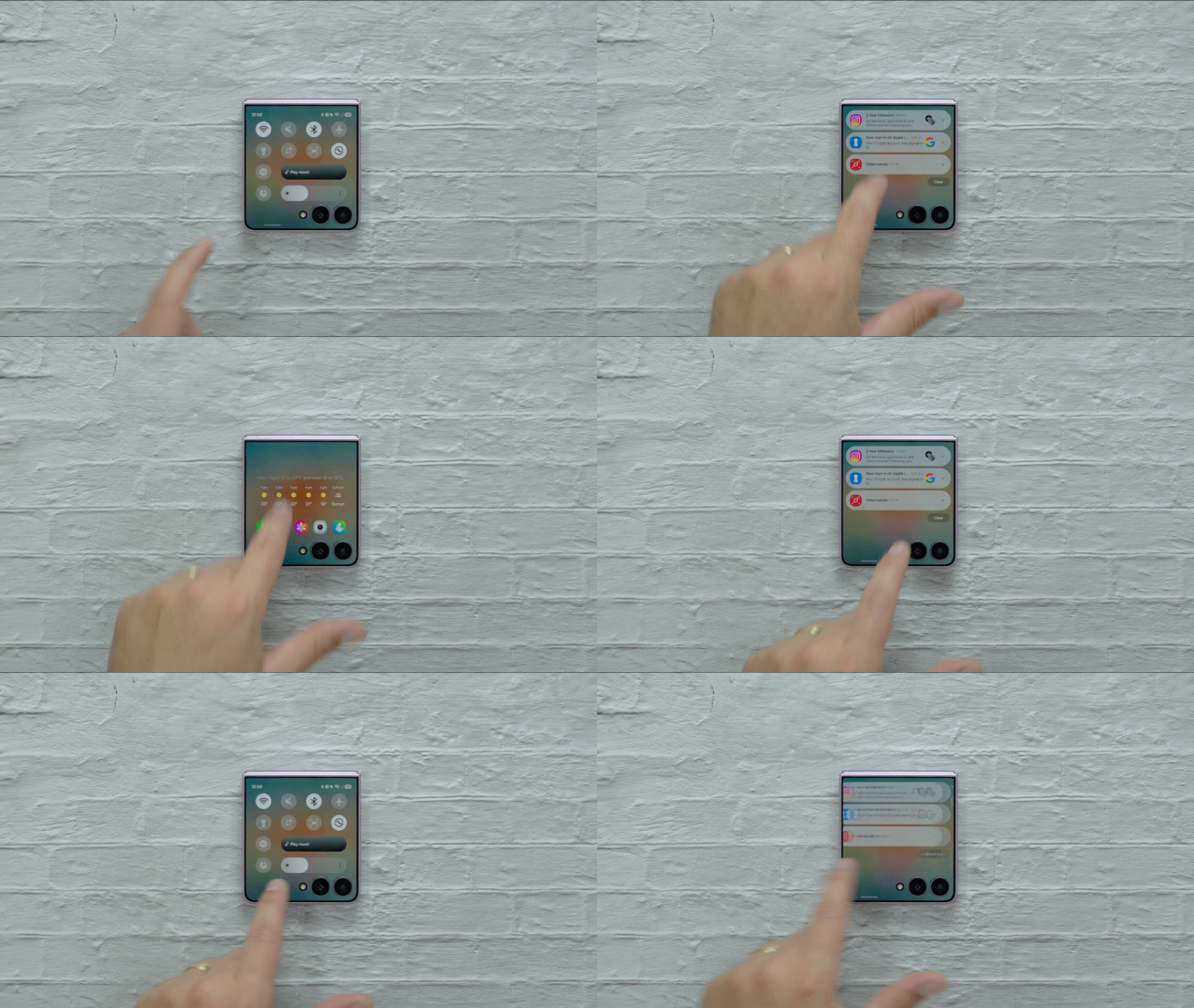
Samsung has also changed the gestures used to access notifications and the quick panel. Before One UI 9, you could see your notifications by swiping right on the cover screen.
After installing the update, you swipe down to open your notifications and then swipe left to reach the quick panel. You can also direction open the quick panel by swiping down from the top right corner of the screen.
This arrangement is closer to how notifications and quick settings work on the main display. It also makes navigating the two screens feel more consistent.
The controls available in the quick panel let you change commonly used settings without unfolding the phone. Unfortunately, you cannot modify the quick panel on the cover screen or long press individual toggles to see more options.
Finding and switching between apps is easier
One UI 9 adds a proper app drawer to the Galaxy Z Flip 7 cover screen. You can open it by swiping up from the home screen.
If you use Good Lock and its MultiStar module to enable additional cover screen apps, those apps will appear in this drawer. Apps that are not designed for the cover screen may not fit perfectly, but Samsung will attempt to resize them for the available space.


The cover screen also gets an interface for recently used apps. Tapping the Recents button or swiping up and holding shows the apps you have opened, allowing you to switch between them much like you would on the main display.
Previously, the cover screen mostly relied on individual app shortcuts. The new app drawer and recent apps screen make it easier to find, open, and move between apps.
You can add widgets from the cover screen
One UI 9 also gives you more control over cover screen widgets without requiring you to unfold the Galaxy Z Flip 7.
Widgets can now be added directly from the cover screen. Samsung has expanded the available selection of widgets as well, with new options for apps such as Bixby and Samsung Internet.


App shortcuts no longer need to occupy an entire widget panel, either. You can place them inside a smaller card and use the remaining space on that page for other widgets.
These changes allow more information and controls to fit into the limited space. They also reduce the number of times you need to open the phone simply to change the cover screen setup.
One UI 9 does not make every cover screen limitation disappear. However, the update changes how the entire interface is organized.
With a home screen, an app drawer, recent apps, and better widget controls, the Galaxy Z Flip 7 cover screen becomes considerably more capable and easier to use.
These changes are currently available through the One UI 9 beta and will become more widely available when Samsung releases the stable update.
En savoir plus sur UniversSmartphone
Subscribe to get the latest posts sent to your email.
